
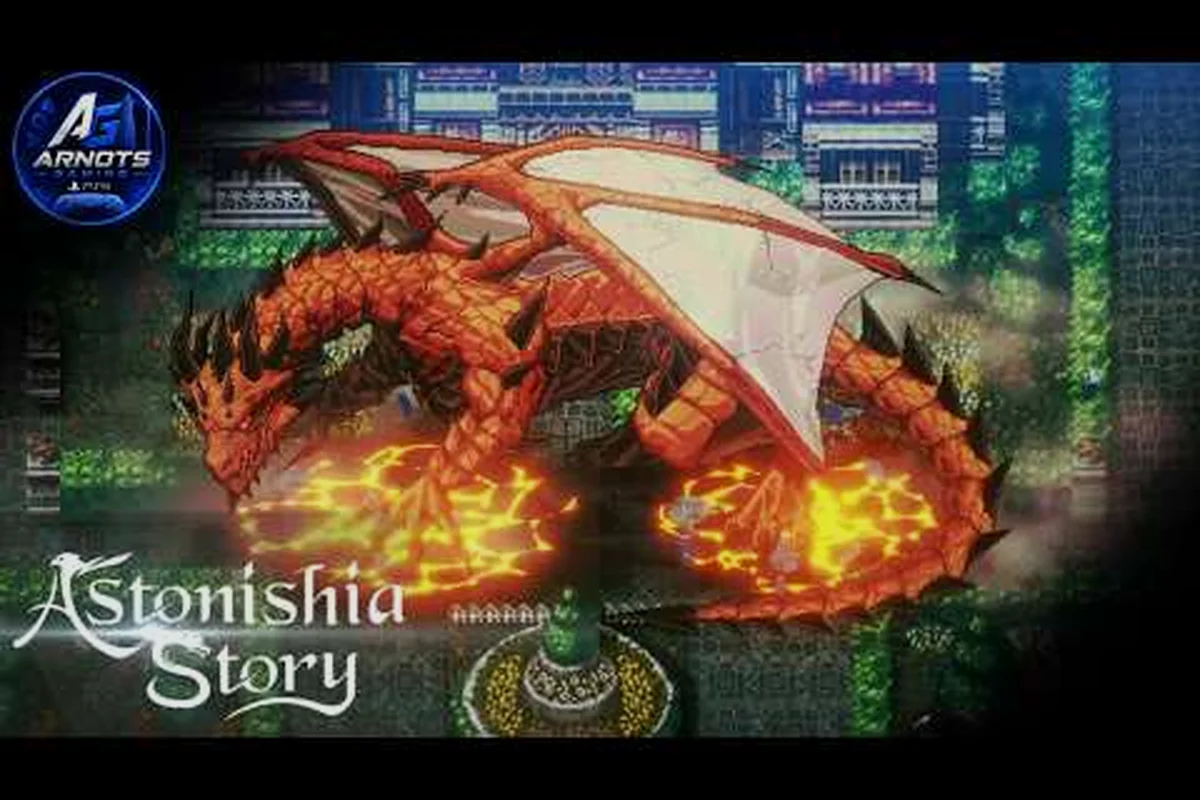
The Astonishia Story Steam release brings the 1994 Korean RPG into the HD era on Windows, which means every new player needs a clear Astonishia Story Steam guide before they launch the game for the first time. According to the official Astonishia Story Steam store page, the title ships with full controller support, single-player and Family Sharing, and a Windows-only build targeted for February 11, 2027. Getting the right setup from the start saves hours of trial and error once the grid-based battles begin.
Getting Astonishia Story Running on PC for the First Time
Before touching any settings, the first step is a clean install of the Steam client and the game itself. The Steam build of the Astonishia Story remake is Windows-only, so Linux players will need Proton compatibility, while macOS users will have to wait for any future port announcements. After purchase, let Steam download the full game, then verify the install by right-clicking the title, choosing Properties, and selecting Verify integrity of game files. A clean cache prevents most first-launch crashes reported by early testers.
System Requirements at a Glance
The 2027 HD remake runs on modest hardware because the underlying engine still uses pixel art with modern lighting, and the same retro sprite-based foundation that defines the Astonishia Story remake keeps the polygon count and draw calls far below what a 3D JRPG would demand. Because the Steam page lists a GTX 1050 or RX 560 as the recommended GPU and only 4 GB of RAM as the floor, even integrated graphics like Intel HD 530 can render battles in towns and dungeons at 60 FPS, which matters when you're juggling Astonishia Story keyboard controls or the Astonishia Story controller settings in real time during party combat. The breakdown below reflects the current store listing, but the final Astonishia Story steam guide specs will be re-verified after the post-launch patch rolls out.
| Component | Minimum | Recommended |
|---|---|---|
| OS | Windows 10 64-bit | Windows 11 64-bit |
| Processor | Intel Core i3-6100 / AMD FX-6300 | Intel Core i5-8400 / AMD Ryzen 5 2600 |
| Memory | 4 GB RAM | 8 GB RAM |
| Graphics | Intel HD 530 / Radeon R7 240 | GeForce GTX 1050 / Radeon RX 560 |
| DirectX | Version 11 | Version 12 |
| Storage | 6 GB available | 6 GB SSD |
These numbers come straight from the store listing, though the final Astonishia Story remake guide will be updated once the post-launch patch lands. Most desktop and laptop CPUs built in the last decade clear the minimum bar without trouble, which is why the Steam page emphasizes accessibility over raw horsepower.
Pre-Install Checklist
Spending two minutes on this pre-flight routine prevents the most common first-session headaches, especially since Astonishia Story's Steam listing flags single-player and Family Sharing only with no native online co-op — meaning you cannot recover from a corrupted install by borrowing a friend's license mid-run. Verifying your driver stack, closing overlay processes, and confirming a clean save path before the launcher even opens saves you from the 30-minute reinstall loop that hits players who skip straight to the title screen and hit a stuttering battle animation or a missing controller binding they cannot remap in-game.
-
Update GPU drivers through GeForce Experience or the AMD Adrenalin app
-
Disable full-screen overlays (Discord, GeForce, Xbox Game Bar) that can interfere with the windowed mode toggle
-
Close browser tabs streaming video to free up RAM for the battle animations
-
Plug in your controller if you plan to use a gamepad, so Windows can finish driver setup
-
Pick a save folder outside the default Steam cloud path if you want manual backups
If your setup feels sluggish after launch, the Astonishia Story gold guide covers system requirements and performance tweaks in more depth, especially for older laptops. A clean install plus updated drivers solves roughly 80 percent of the first-session issues according to community reports.
Astonishia Story Controls Guide: Keyboard and Mouse by Default
The PC port leans on a classic RPG control scheme, where the mouse drives the cursor and the keyboard handles menu shortcuts. The Astonishia Story controls guide follows the conventions most JRPG players already know, so muscle memory transfers from other NIS America titles. Holding Z confirms a menu option, X cancels, and the Arrow Keys move the on-screen cursor through the grid during combat. Pressing Esc opens the system menu, while Tab toggles the in-game map overlay that shows the current region.
Default Keyboard Bindings
The default bindings below map each key to its in-game function, and were assembled from community playthroughs of the earlier Astonishia Story PSP build, then cross-referenced against the on-screen key icons visible in the Steam announcement trailer — which is why Tab appears for the map overlay and Space for skipping cutscenes, two assignments that match the PSP layout almost one-to-one. Because the Steam port does not expose a rebind menu in the launch build, knowing these defaults before you start the Forest Path or the Ruins dungeon saves the frustration of hunting for a Confirm button mid-grid.
| Key | Action | Context |
|---|---|---|
| Arrow Keys | Move cursor | Field and battle |
| Z / Enter | Confirm | Menus and dialog |
| X / Backspace | Cancel | Menus and dialog |
| Esc | System menu | Any screen |
| Tab | Map overlay | Field |
| Space | Skip dialog | Cutscenes |
| A / S | Quick-save / Quick-load | Field only |
| 1-4 | Select party member | Battle menu |
| F1 | Help / Glossary | Any screen |
Quick-save and quick-load through A and S are especially useful during grid battles, where one bad positioning can wipe out twenty minutes of farming. The game also supports Steam Cloud saves, so progress syncs across PCs once you sign in.
Mouse Support in Menus and Battle
Mouse input is supported in the menus, the overworld, and the grid battles, even though the game was originally designed for a D-pad. Clicking a menu option is equivalent to pressing Z, and the right mouse button mirrors the X cancel key. During combat, hovering over a tile highlights the movement range in the same color coding used on gamepad, so planning flanks with the cursor is just as fast as using the d-pad. Players who prefer a pure mouse workflow can rebind confirm and cancel to Left Click and Right Click through the settings menu.
Astonishia Story Controller Settings: Plug-and-Play and Full Rebinding
Steam's controller layer makes the Astonishia Story controller settings experience much friendlier than the original PSP build ever was. The game ships with full Xbox, PlayStation, and generic HID gamepad support, and Steam Input recognizes the pad before you even open the launcher. According to the Steam store page, the title lists controller support as a core feature, so the team prioritized pad parity over keyboard-only play.
Default Controller Layout
The default layout mirrors the PSP button map, which is helpful for players who played the original Korean MS-DOS version or the 2005 PSP port. The right trigger opens the menu, the face buttons navigate, and the shoulder buttons cycle party members in battle. The grid-based combat also supports aim assist through the right stick, so flicking between tiles feels responsive even on older pads.
| Controller Button | Action | Context |
|---|---|---|
| A / Cross | Confirm | Menus and dialog |
| B / Circle | Cancel | Menus and dialog |
| X / Square | Quick-save | Field only |
| Y / Triangle | Help / Glossary | Any screen |
| L1 / LB | Previous party member | Battle |
| R1 / RB | Next party member | Battle |
| L2 / LT | Cycle target | Battle |
| R2 / RT | Open menu | Any screen |
| Left Stick | Move cursor | Field and battle |
| Right Stick | Camera / map pan | Field only |
| Start / Options | System menu | Any screen |
| Select / Share | Map overlay | Field |
Steam's radial menu is assigned to the right stick by default, which collides directly with Astonishia Story Remake's camera and map-pan binding on the same stick, so most players disable the overlay in Steam Input settings to stop the menu from popping up every time they rotate the camera in the field or in grid battles. If you'd rather keep the radial menu, rebinding the in-game camera to the d-pad in the controller settings preserves the stick for Steam shortcuts without losing responsiveness.
Rebinding Through Steam Input
For players who want a custom layout, Steam Input offers per-game profiles that override the defaults. Open the Steam overlay, choose Controller Settings, then Edit Layout to remap any button. Common tweaks include moving Quick-save to a shoulder button so it is reachable with the left hand, or binding Confirm to the right trigger for a one-handed play style.
Players who use a Steam Deck can also save the layout to a community profile, which is exactly what the Astonishia Story Steam Deck guide covers in detail. The Deck-specific tips also touch on performance scaling and TDP settings that keep frame pacing smooth during multi-enemy battles.
Launch Options and Performance Tweaks That Actually Help
Launch options in Steam are command-line flags that change how the executable starts, and they are often the fastest way to fix stubborn issues. For the Astonishia Story remake, most players will not need any flags at all, but a few edge cases benefit from manual overrides. Adding -windowed forces the game to start in windowed mode, while -fullscreen skips the resolution picker. The flag -nojoy disables joystick polling, which can lower input latency on systems with flaky Bluetooth controllers.
Recommended Launch Options by Scenario
| Scenario | Flag | Why It Helps |
|---|---|---|
| Stuttering full-screen | -windowed -borderless | Bypasses display mode switching |
| Bluetooth pad drops | -nojoy then re-enable in settings | Forces clean re-pairing |
| 4K monitor scaling issues | -w 2560 -h 1440 | Locks the render resolution |
| Audio crackling | -refresh 60 | Caps frame pacing to the display |
These launch flags belong in the Properties → General → Launch Options field of the Steam client for Astonishia Story. Apply them one at a time and relaunch the game after each edit, so you can clearly attribute any fix — for instance, a dropped Bluetooth pad that re-pairs cleanly under -nojoy — to that specific command rather than to a batch of overlapping parameters.
In-Game Graphics and Audio Settings
Inside the game, the options menu separates Display, Audio, and Gameplay into three tabs. The Display tab controls resolution, full-screen toggle, and a High Contrast mode that helps players with color vision deficiency during grid combat. The Audio tab handles master volume, BGM scaling, and voice channel balance between English and Japanese dubs, which is especially important since the remake adds full voice acting where the 1994 original had none.
The Gameplay tab is where most of the Astonishia Story remake guide advice kicks in. It exposes the Battle Speed slider, the Auto-Battle toggle, the Cursor Snap option, and the Damage Numbers display, all of which change the feel of combat without altering difficulty. Players who struggle with grid movement should turn on Cursor Snap because it locks the cursor to the nearest valid tile instead of free placement, removing a layer of micro-aiming during the turn order window.
First-Hour Setup Tips for a Smoother Campaign
The opening hour of the Astonishia Story remake is mostly linear, but a few setup decisions ripple through the rest of the playthrough. The first choice that matters is between English and Japanese audio, which can be swapped freely from the system menu, so do not worry about locking in a bad pick. The second is the Battle Speed slider; setting it to Fast for normal mobs and Normal for bosses is a common community recommendation, because grid battles stack up quickly when you are grinding mercenary recruits.
Save and Display Habits Worth Building Early
-
Save at every inn so a misclick in the recruit menu does not erase twenty minutes of dialogue
-
Use quick-save before boss intros because some boss phases start before the player gains control
-
Lock the display to 60 Hz if your monitor supports higher refresh rates, because the game caps internally
-
Disable vibration on controllers if you play with headphones, since the rumble motor often drowns out the new voice track
-
Rebind the map overlay to a shoulder button so it is reachable without breaking the movement stick
If you are coming from the PSP version or the older 1994 release, the Astonishia Story remake changes guide covers the full list of quality-of-life upgrades, including the new auto-battle toggle, the modernized inventory, and the redesigned tutorial.
Steam Setup Mistakes First-Time PC Players Make
Three mistakes show up over and over in community threads, which is why this Astonishia Story remake guide calls them out before the launch window opens. First, do not assume the game supports ultrawide resolutions out of the box; the display tab may force a 16:9 pillarbox until the post-launch patch ships. Second, avoid touching the Difficulty slider until you finish at least one chapter, because the remake locks the Hard mode reward behind a clear of the Normal campaign. Third, keep an eye on the Quick-Load key, because quick-loading during a boss cutscene can skip the dialogue flag that unlocks a hidden recruit.
A quick pass through the Astonishia Story complete guide also helps if you want a broader walkthrough that complements the system-level setup here. The two guides cover different layers, so reading both before launch day is a safe move for new players.
Advanced Tweaks: Steam Cloud, Mods, and Family Sharing
Once the basics are dialed in, the Steam build offers a few more knobs that experienced PC players will want to know. Steam Cloud syncs save files between PCs automatically, but you can force a local-only save by going to Properties → General → Steam Cloud and toggling off Keep game saves in the Steam Cloud. This is useful when you want to test risky strategies without polluting your main playthrough save.
Family Sharing and Save Isolation
The Steam page lists Family Sharing as a supported feature, but only the host account keeps achievement progress. Family members can play through the campaign on their own save file, which is helpful when multiple household players want to experience the grid battles without conflicting save data. Set up separate Windows user accounts on the same PC for cleanest results, because the game stores per-user configuration in the AppData folder.
Modding and Community Profiles
The remake is too new for a mature mod ecosystem, but Steam Workshop support is on the roadmap according to community Q&A. Until then, players can still use Steam Input community profiles to share custom controller layouts. Search the Steam community hub for the game and filter by Controller Layouts to find layouts from other players, including a popular one-button Confirm Only profile designed for one-handed accessibility.
Frequently Asked Questions
Does Astonishia Story on Steam support controllers at launch?
The Steam page confirms full controller support as a core feature, including Xbox, PlayStation, and generic HID gamepads, and Steam Input recognizes the pad before launch so you can rebind every button through the overlay without leaving the Astonishia Story window. For players who prefer the original PSP layout, importing the DualShock 4 community preset restores L/R shoulder to menu and confirm/cancel to the bottom face buttons.
Can I rebind the keyboard controls in Astonishia Story?
The in-game settings menu exposes the most common keys, while Steam Input handles deeper rebinds through the overlay. For most players, the default Z confirm and X cancel layout matches the PSP build, which is why the team kept it as the shipping default.
What are the best launch options for a stable framerate?
Start with -windowed -borderless if you see stuttering when alt-tabbing, and add -refresh 60 if your monitor runs above 60 Hz. The game's internal framerate cap is 60 fps, so capping the display matches it and prevents frame pacing drift.
Is the Steam version different from the console remake?
The core campaign, mercenary system, and grid battles are identical across platforms according to the official store page. The PC build adds proper keyboard and mouse support, ultrawide resolution options through a post-launch patch, and Steam Cloud saves, which are not available on consoles.
Will my Astonishia Story save transfer between PC and Steam Deck?
Yes, because Steam Cloud syncs saves between any PC signed into the same account, including the Steam Deck. The game is also Steam Deck Verified based on the page metadata, so the same controller layout works on both devices without manual remapping.